Step 1: Install via npm
npm install -g superbased
Requires Node.js 18+. Installs the superbased CLI globally (~55 MB).
Step 2: Install plugin or add MCP server
Claude Code — install the plugin for 22 slash commands, 7 skills, and 2 agents:
/plugin marketplace add marmutapp/superbased-claude-code-plugin
/plugin install superbased@superbased-tools
Cursor — plugin available at marmutapp/superbased-cursor-plugin (22 commands + 3 Cursor rules)
Codex — plugin available at marmutapp/superbased-codex-plugin
Copilot CLI — copilot plugin install marmutapp/superbased-copilot-plugin
Cline — submitted to Cline MCP Marketplace (pending approval)
All editors (MCP config) — add to your editor's MCP config file:
{
"mcpServers": {
"superbased": {
"command": "superbased",
"args": ["mcp"]
}
}
}
OpenAI Codex — add to ~/.codex/config.toml:
[mcp_servers.superbased]
enabled = true
url = "http://127.0.0.1:47592/mcp"
See full setup guide for all editors. The /mcp endpoint uses Streamable HTTP transport for URL-based clients.
Step 3: Sign in (optional)
superbased auth login
Opens your browser for sign-in. After authenticating, the token is stored locally and shared with the desktop app if you install it later.
What works without signing in
Screen Capture
Fullscreen, region, and window-targeted screenshots with resolution control for token efficiency.
OCR
Local text extraction from any screenshot using Tesseract. No data leaves your machine.
Gallery
Persistent capture history with full-text search, tags, and notes. All stored locally in SQLite.
Token Compression
Compress large text into optimized images for massive context window savings.
What requires signing in
AI Analysis
Vision-based code review, error analysis, UI inspection. Powered by your plan's AI quota.
Voice Dictation
Transcribe audio files or record live from your microphone. ffmpeg is bundled automatically.
Recording + Visual QA
Automated screenshot recording, session diff, visual regression testing, and session export.
Auto-Redaction
Automatically detect and redact API keys, tokens, passwords, and PII from captures.
Upgrading to the desktop app
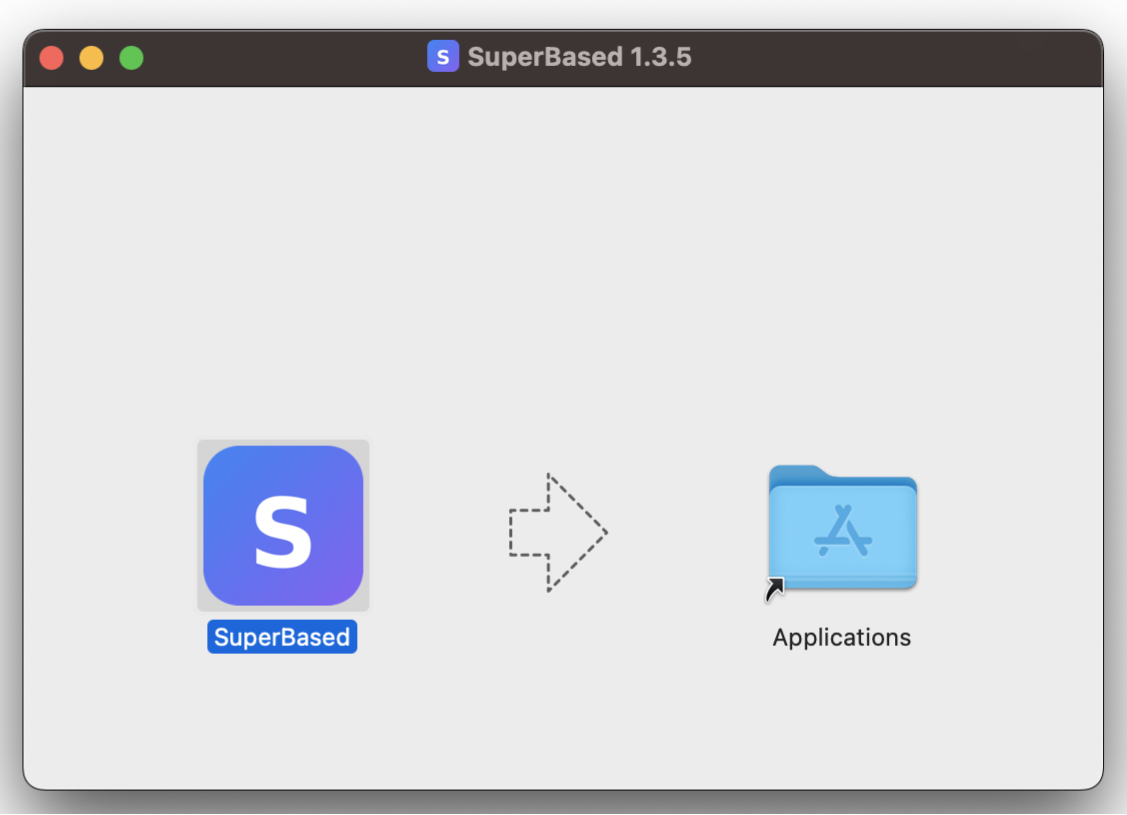
If you later install the desktop app, everything carries over automatically — your captures, settings, auth token, presets, and recording sessions. Zero migration, no re-authentication. The desktop app adds a full GUI with overlay, image editor, tray icon, global hotkeys, and scroll capture.
Available CLI commands
superbased Start headless server (default)
superbased serve Start server with options (--port N)
superbased mcp Start API server + MCP bridge (for AI editors)
superbased auth login Sign in via browser
superbased auth status Show authentication state
superbased auth logout Clear stored token
superbased capture Take a screenshot, print file path
superbased --version Show version
superbased --help Show all commands
72 MCP tools are available covering capture, AI, OCR, gallery, settings, presets, recording, visual QA, token compression, dictation, annotations, clipboard, plus the full GUI automation suite (click, type, hotkey, scroll, drag, hover, AX-invoke, form-fill, dialog-handle, find-image, tab-management, find-in-page, virtual-desktop, tray-click, sequence orchestration). See the documentation for the full tool reference.